Hey there,
Welcome back. And a warm hello to anyone joining us for the first time.
|
🍁 To review previous issues, visit theaieh.ca/articles |
This week we are going one step further, because ChatGPT just got a genuinely impressive new capability, and I wanted to show you what it actually looks like in practice. We are talking about image creation. And I did not just write about it. I tried it myself, live, while writing this issue. More on that in a minute.
What just changed with ChatGPT images
On April 21, 2026, OpenAI launched ChatGPT Images 2.0. It is a significant upgrade to what was already a pretty capable image tool, and a few of the improvements are genuinely worth paying attention to.
The headline feature is text rendering. If you have ever asked an AI tool to make an image with words in it and ended up with something that looked like alphabet soup, you know exactly why this matters. The new version can put readable, accurate text into images. Signs, labels, titles, captions. It actually works.
There is also a new aspect ratio feature that lets you change the shape of your image after you generate it, without starting over. So you could create something, then resize it for Instagram, then resize it again for a Facebook post, all in the same conversation.
The quality is higher overall, the results come back faster, and you can refine what you get by just talking to it. "Make it warmer." "Move the text to the bottom." "Can you make the background more outdoorsy?" It treats image creation like a conversation, not a one-shot guess.
The free version of ChatGPT gives you a limited number of images per day. Paid subscribers get more, plus access to additional features. But the free version is enough to get started and see what it can do.
I tried it. Here is what happened.
I wanted to show you this properly, not just describe it. So I opened ChatGPT, wrote a detailed prompt asking it to create a cartoon version of me for the newsletter, and hit go.
I will be honest, my first attempt at the prompt was not detailed enough and the result showed it. Once I took a few minutes to write a proper description of what I actually wanted, the image came back in under two minutes. First try, no back and forth, no tweaking. See for yourself:
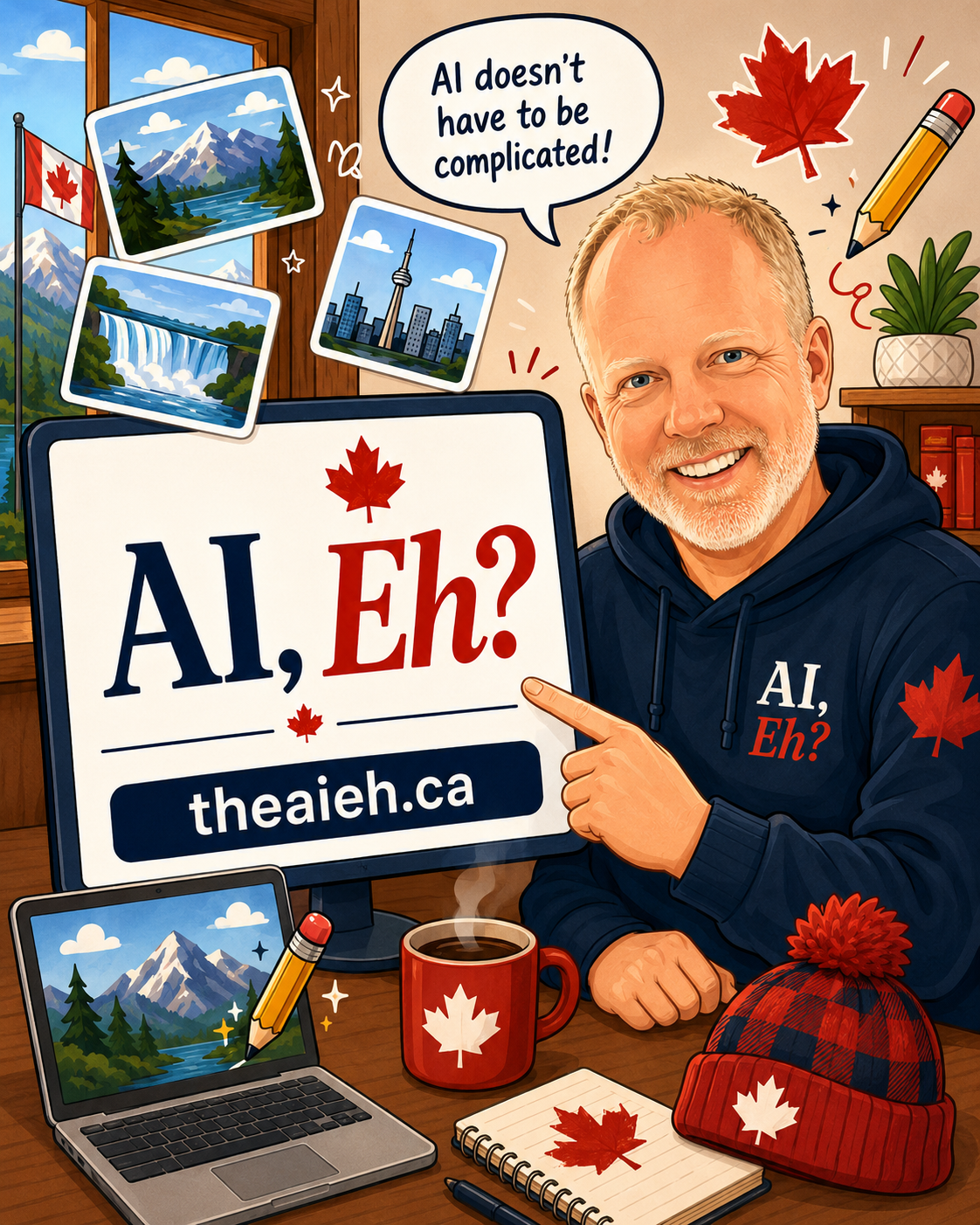
Generated by ChatGPT Images 2.0. First try. No iterations. |
That is me. In cartoon form. Pointing at an AI, Eh? sign, with a maple leaf mug, a toque, a Canadian flag in the window, and a speech bubble that says "AI doesn't have to be complicated." The text is readable. The branding is right. The likeness is pretty solid. And I did not touch it after it came back.
Here is the exact prompt I used, so you can see what went into it:
| "Create a fun cartoon-style promotional image for a newsletter article about ChatGPT's new image creation features. Show a friendly cartoon version of Chris MacKinnon, founder of AI, Eh?, standing beside a large playful computer screen that displays the website name "AI, Eh?" and the URL "theaieh.ca". Chris should look cheerful, welcoming, and excited, like he is showing everyday Canadians that AI image creation can be fun and useful. Around him, include a few whimsical cartoon elements: floating image thumbnails, a magic pencil, a maple leaf, and a friendly laptop making a small picture. Use a clean Canadian colour palette of deep navy, red, white, and light grey. The style should be bright, warm, lightly humorous, and polished, like a modern cartoon advertisement. Keep all text minimal and readable: only "AI, Eh?", "theaieh.ca", and optionally a small speech bubble that says "AI doesn't have to be complicated!" Avoid robots, sci-fi effects, technical jargon, cluttered screens, and overly realistic corporate styling." |
That is it. That is the whole prompt. Detailed, yes. But written in plain English. No special codes, no technical syntax, just a clear description of what I wanted. That is the key thing to take away here.
What can you actually use this for?
|
1. Social media graphics You do not need Canva skills or a graphic designer to make something that looks decent on Instagram or Facebook. Describe what you want, pick a style, and see what comes back. You can ask for a quote card, a seasonal graphic, a banner for an event, or just something fun to post. Marcus in Saskatoon runs a small hockey school. He asked ChatGPT to create a registration graphic with bold text, a hockey theme, and his program name. It came back clean enough to post directly. Fill in the blank prompt:
Ready to use example:
|
|
2. Personal projects and cards Birthday cards, thank you notes, custom invitations, a fun image for a retirement party. If you have ever wanted something a little more personal than a stock photo but do not have the design skills to make it yourself, this is worth trying. Sandra in Halifax wanted a unique card image for her dad's 70th birthday. She described him briefly, asked for a warm cartoon style, and got something personal enough to print and frame. Fill in the blank prompt:
Ready to use example:
|
|
3. Fun stuff just for you Not everything needs a practical purpose. A cartoon version of your pet. A fantasy landscape of your favourite place in Canada. A retro poster of your hockey team. AI image creation is genuinely fun to play with, and playing with it is actually how you get better at prompting. The more specific you are, the better the results. Describe the style, the mood, the colours, what you want included, and what you want left out. Think of it less like a search engine and more like briefing a very patient illustrator. Fill in the blank prompt:
Ready to use example:
|
A few things worth knowing
The free version of ChatGPT limits how many images you can generate per day. If you hit that limit, just come back tomorrow. It resets. You do not need a paid account to get started and see what it can do.
Results vary. Sometimes the first image is exactly what you wanted. Sometimes it takes a couple of tries, or a bit of back and forth to get there. That is normal. The tool is good but it is not a mind reader. Clear, specific prompts get better results than vague ones.
And as always: use your judgment. If it generates something that does not quite look right, or the text is still a bit off, you can ask it to fix specific things. Or you can take what it made into Canva and make the final tweaks yourself. AI gives you a strong starting point. You still bring the taste.
Your challenge this week
Open chatgpt.com, make sure you are on GPT-5.5, and try generating one image. Use one of the prompts above or write your own. It does not have to be useful. Make something fun. The goal is just to see what it does. I think you will be surprised.
Coming up next week
Issue 11 is something a bit different. We are going to talk about AI and Canadian privacy law, specifically PIPEDA, what it actually says, and what it means for everyday Canadians who are using AI tools. It is less intimidating than it sounds, I promise. And it is worth knowing.
|
AI assisted, Human led. Whatever AI produces for you, always read it, verify it, and make it sound like you. AI is an incredible first draft machine. Your judgment, your voice, and your values are always the final layer. |
As always, I read every reply personally. Did you try generating an image? Hit reply and let me know what you made. I genuinely love hearing what people come up with.
If you found this useful, pass it along to someone who would get a kick out of it. The more Canadians who feel confident with this stuff, the better.
|
Know someone who would love AI, Eh? Send them here: Subscribe for free |
Talk soon,
Chris
Founder, AI, Eh?